
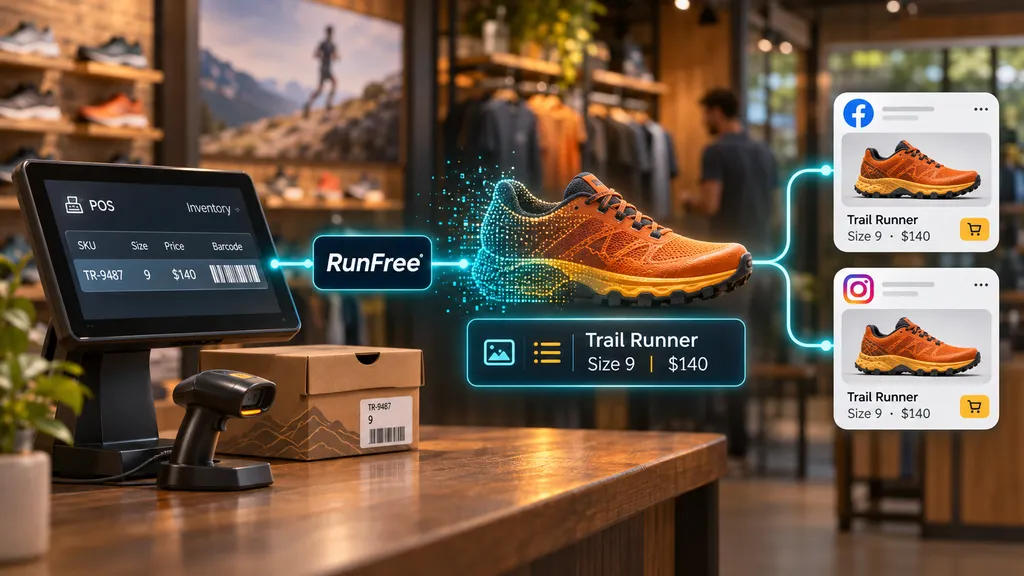
A runner finds a trail shoe on Instagram after your store closes. You sold the last pair in her size an hour ago, but the social catalog hasn’t refreshed yet. When she taps through to your RunFree storefront, she can see which sizes are still available before she places an order.
That’s why the RunFree integration handles product discovery and checkout on different schedules. Facebook and Instagram can refresh your catalog overnight, including product photos. Your RunFree storefront checks availability against your connected point-of-sale system as customers shop. You maintain the product information in one place, even when runners discover you somewhere else.
Start with your RunFree product feed
Open the support chat in your RunFree admin and ask the team to enable your Facebook product feed. Do this before setting up the catalog in Meta. An inactive feed can produce an empty import even when you’ve entered the correct address.
Use the feed URL for the domain where your RunFree e-commerce store lives. If your main website and online shop use different domains, it’s the shop address that matters. RunFree support can confirm the URL for your store.
Connect one catalog to both channels
In your store’s Meta business account, create a new product catalog for RunFree. If you’ve moved from another e-commerce platform, a fresh catalog gives you a clean starting point and keeps the previous store’s data source separate.
When you connect a Meta pixel to the catalog, match its ID to the one listed under Settings → Store SEO in RunFree. Checking the number is especially helpful if your business account contains several pixels with similar names.
In Commerce Manager, add your RunFree feed URL as a scheduled data feed and enable automatic updates. RunFree recommends a daily refresh between 1 and 3 a.m. local time. Connect your store’s Instagram account to the same catalog so a product update in RunFree can reach both channels on the next import.
Keep checkout on your store’s website
Choose website checkout so shoppers who discover a product on Facebook or Instagram complete their purchase on your RunFree storefront. This is where the connection to your POS matters most. A runner can select an available size, apply a discount code, or redeem a store gift card just as they would if they’d come directly to your site.
Review the first import
Once the catalog loads, open a few listings as a shopper would. Can you see the whole shoe from heel to toe? Does the product link take you to the right page? If a photo cuts off part of the shoe, look for the catalog’s image-cropping option and choose Show entire image in frame.
Then review the catalog’s issue report. If a listing has incomplete product information, correct it in RunFree so the next scheduled import carries the fix to both Facebook and Instagram. The same approach works when a new color arrives or a product photo changes: update it once, and let the feed handle the repeat work.
Watch the original Sprint TV walkthrough for a screen-by-screen look at the 2023 setup.