
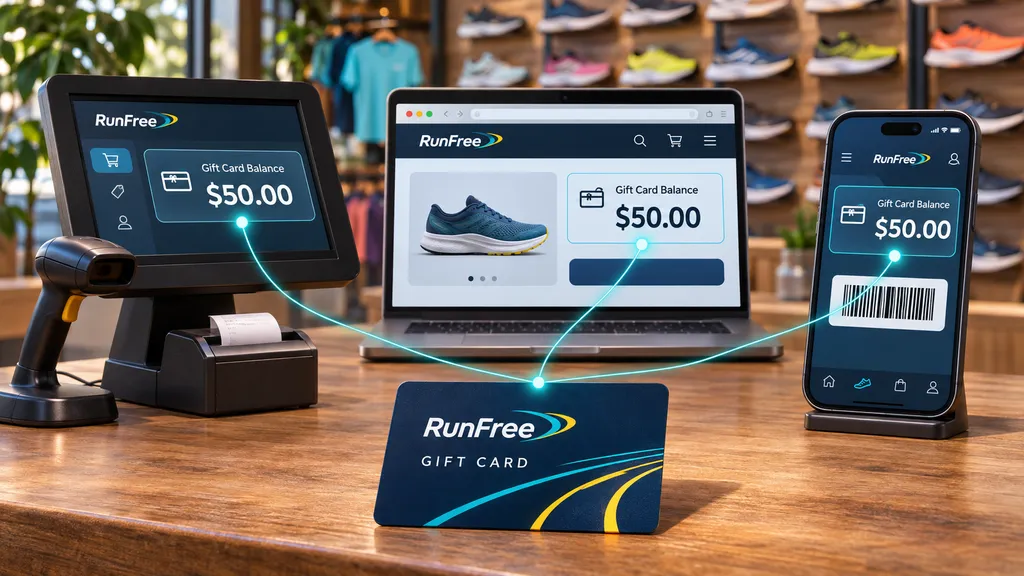
Give shoppers a choice between an emailed gift card and a physical card they can wrap. With RunFree connected to your point-of-sale system, runners can spend either one online or in your store.
A runner gets a $100 gift card to your store for her birthday. She spends $50 on a hydration vest through your app, then brings the card to the shop a week later to put the rest toward a pair of shoes. At the register, she expects one simple answer to “How much do I have left?”
With RunFree connected to your point-of-sale system, the answer is $50. Your associate can scan the barcode on her phone and apply the remaining balance. It makes no difference that someone bought the card on your website or that she made her first purchase through the app.
How one balance follows the runner
When a customer buys a digital gift card through your RunFree storefront, RunFree creates the card in your POS. The recipient gets an email with the card number and a scannable barcode. Your POS keeps the balance, and your website and app check that same record when the runner uses the card.
It works in the other direction, too. Someone can buy a physical gift card at your counter, tuck it into a birthday card, and mail it to a runner who prefers to shop online. The recipient can enter the card number at checkout. Your staff doesn’t have to issue a separate online code or transfer the balance.
Offer an email for tonight and a physical card for the holidays
A parent buying a gift the night before a race may want it in the runner’s inbox before the starting gun. In the RunFree digital gift card builder, the buyer can choose an amount, enter the recipient’s details, and add a personal note. To offer that option, enable Allow Dynamic Gift Card Sales in your digital gift card settings.
Someone shopping for a stocking stuffer may want a physical card from the very same page. You can give them that choice in a few steps.
- Create the physical card options in your POS. Add a gift card category and a separate item for each amount you want to sell, such as $25, $50, or $100. Give each item a positive inventory quantity so it can sync to RunFree.
- Prepare the listings in RunFree. Add a photo and a short description that makes clear the buyer is ordering a physical card by mail. Check the price and make each listing visible on your storefront.
- Connect the two choices. Copy the address of your physical gift card category page. In the digital gift card description, add a Get a physical gift card button that links to it.
One detail matters at fulfillment: the online order tells your team which card to issue. When a $50 physical gift card order comes in, load $50 onto a card at the register just as you would for a customer standing at the counter, then mail it to the recipient. That card now draws on the same POS balance whether the runner uses it in person, on your website, or in your app.
For the person buying the gift, the only decision is whether to put it in an inbox or an envelope. The runner gets to decide where to spend it.
Watch the Sprint TV gift card walkthrough for a screen-by-screen look at the setup.